How to Turn Off Automatic Chapters on YouTube (2026 Guide)
Disable YouTube's automatic chapters in 3 ways: single video, bulk editing, or default settings. Step-by-step with screenshots.
TL;DR: YouTube Studio → your video → Show More → uncheck “Allow automatic chapters and key moments” → Save. For bulk changes or future uploads, see the methods below.
YouTube’s automatic chapters use AI to detect topic shifts and generate chapter markers on your videos. It’s enabled by default on every upload. For creators who write their own chapters or use a chapter generation tool, these auto-generated chapters can be inaccurate, generic, or conflicting with your manual timestamps.
Here are three ways to disable them, depending on your situation.
Method 1: Disable for a Single Video
This is the most common need — you’ve added your own chapters to a video and want to make sure YouTube’s auto-generated ones don’t interfere.
- Open YouTube Studio (studio.youtube.com)
- Click Content in the left sidebar
- Click on the video you want to edit
- Scroll down and click “Show More” to expand additional settings
- Under Automatic Chapters, uncheck “Allow automatic chapters and key moments”
- Click Save
That’s it. YouTube stops generating automatic chapters for that video immediately.
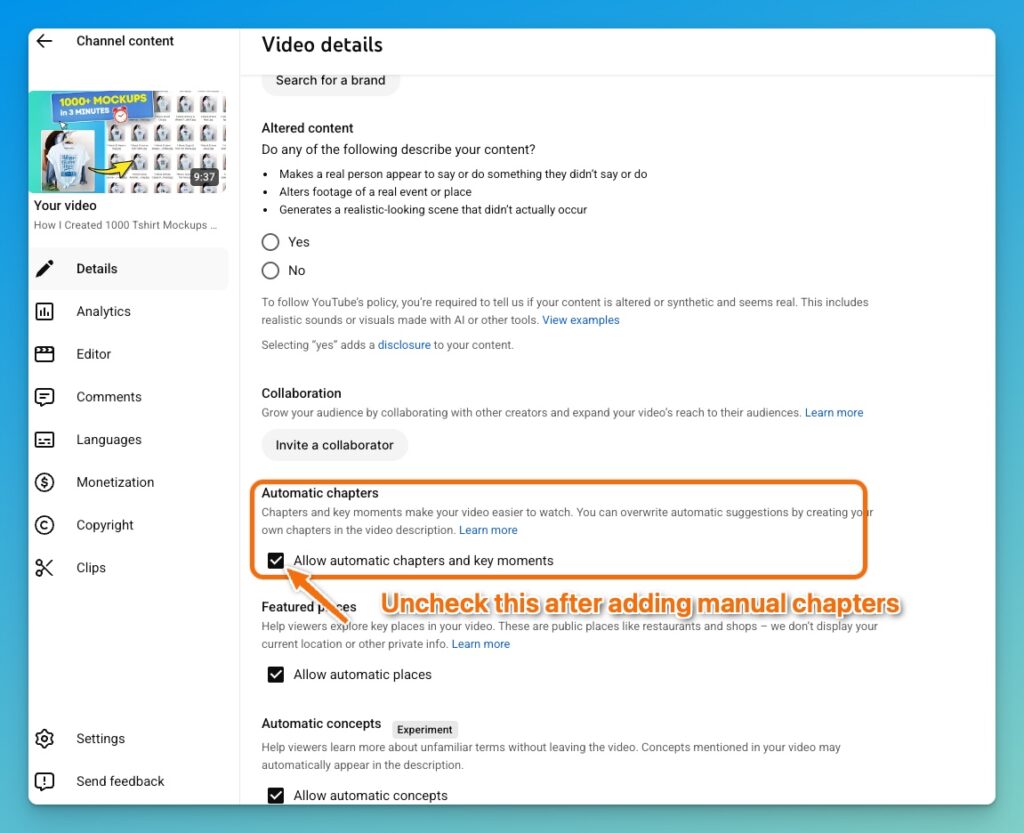
Disable Automatic Chapters
What happens to existing auto-chapters? They disappear within a few minutes of saving. If you had manual chapters in your description, those will now be the only chapters visible on the progress bar.
Method 2: Disable in Bulk
If you’re retroactively adding manual chapters to older videos or simply want to turn off auto-chapters across your library, YouTube Studio supports bulk editing.
- Open YouTube Studio → Content tab
- Change the display count from 30 to 50 videos (bottom of the list)
- Select the checkbox at the top to select all visible videos — or select specific ones individually
- Click “Edit” in the toolbar that appears at the top
- Select “Automatic chapters” from the dropdown
- Choose to disable automatic chapters for all selected videos
- Click “Update videos” to confirm
Repeat for additional batches if you have more than 50 videos. This is the fastest way to clean up auto-chapters across a large library.
Method 3: Change the Default for Future Uploads
To prevent automatic chapters from being enabled on every new video you upload:
- Open YouTube Studio → Settings (gear icon, bottom left)
- Click Upload defaults
- Click the Advanced settings tab
- Uncheck “Allow automatic chapters (when available and eligible)”
- Click Save

Every video you upload from this point forward will have automatic chapters disabled by default. You can always re-enable them for individual videos if needed.
When You Should Turn Off Automatic Chapters
You’ve added manual timestamps. Manual chapters override auto-generated ones by design, but disabling auto-chapters removes any edge case where processing conflicts could occur. If you’ve invested time in keyword-optimized chapter titles, you don’t want generic auto-titles as a fallback. See how to add chapters to YouTube videos for the full manual process.
You use a chapter generator tool. Same logic, if you’re producing higher-quality chapters through a dedicated tool, disable the auto-generated ones.
Auto-chapters are cutting at wrong moments. If YouTube’s AI is placing breaks mid-sentence, during transitions that aren’t real topic shifts, or at moments that fragment your narrative awkwardly, turn them off. Bad chapters are worse than no chapters.
You have a content style that confuses the AI. Montages, rapid-fire edits, silent demonstrations, music-heavy segments, these content types often produce poor automatic chapters. The AI relies primarily on speech and visual transitions, so content without clear verbal cues gets mis-chaptered.
When You Should Keep Automatic Chapters On
You’re not adding manual chapters and don’t plan to. Some chapters, even imperfect ones, are better than none. They provide basic navigation for viewers and give Google some structural data to work with.
You want a starting point. YouTube allows you to import auto-generated chapters into your description and edit them from there. This can save you from manually noting timestamps, you refine what the AI provides instead of building from scratch.
You’re testing chapters on your channel. If you’ve never used chapters before, leave them on for a few weeks and check your analytics. Do viewers use them? Does watch time change? Use the data to decide whether to invest in manual chapters.
For a deeper look at the trade-offs, see automatic vs manual chapters compared.
Replace Auto Chapters With Better Ones
The strongest move isn’t just disabling automatic chapters, it’s replacing them. Disabling leaves your video with no chapters at all, which removes a navigation and SEO tool from your content.
Instead: generate better chapters, add them to your description, then disable automatic chapters. Our AI YouTube chapter generator produces keyword-rich, correctly formatted chapters from any video URL. You paste, review, and save, then disable auto-chapters knowing your manual ones are stronger.
FREE TOOL
Generate YouTube Chapters in Seconds
Paste any YouTube URL and get SEO-optimized chapters — correctly formatted, keyword-rich, ready to paste into your description.
Try ChapterFast — It’s Free →No signup required. Generate chapters instantly.