How to Add Chapters to YouTube Videos (Step-by-Step Guide)
Learn how to add chapters to YouTube videos step by step. Covers manual timestamps, automatic chapters, formatting rules, and tips for better video SEO.
TL;DR: Add timestamps in your video description starting at 0:00, with at least 3 entries, each 10+ seconds apart. YouTube turns these into clickable chapter markers on the progress bar. You can also use an AI chapter generator to create them automatically from any video URL.
Chapters split your video into labeled, clickable sections. Viewers can jump to what they need. Google can surface individual sections in search results. And it takes about five minutes to set up, less if you use a tool.
Here’s the complete process.
Why Chapters Matter (More Than You Think)
Most guides tell you chapters “improve viewer experience.” That’s true, but it undersells what they actually do.
Chapters create multiple search entry points. A single 20-minute video with 8 chapters can rank for 8 different search queries in Google. Each chapter title becomes a potential Key Moment in Google Search, a clickable timestamp that appears directly in search results.
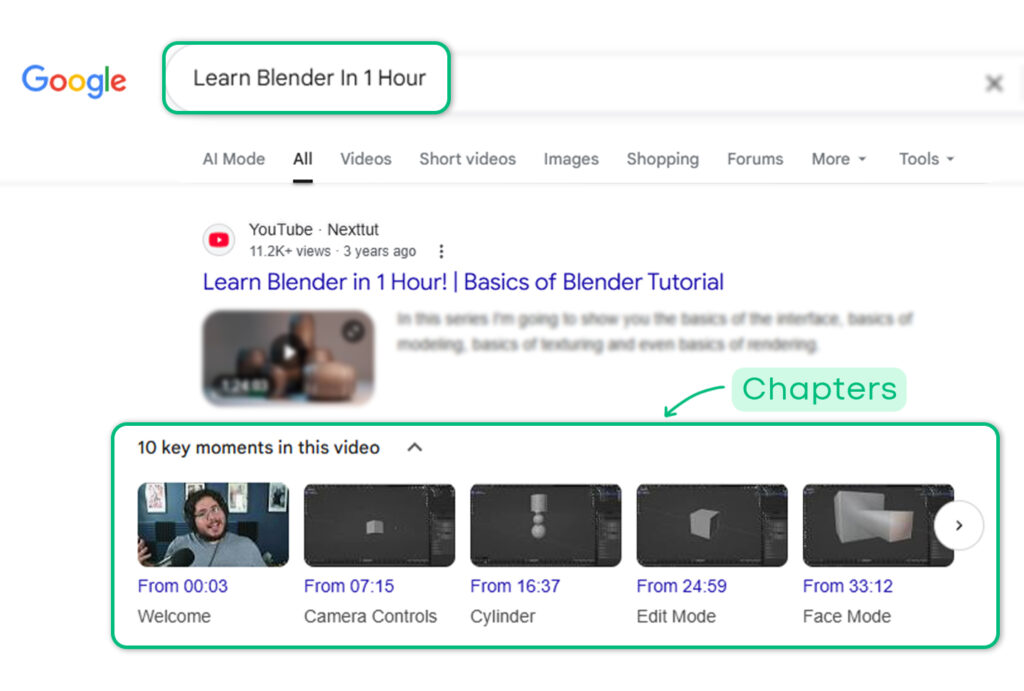
Key Moments in google with multiple click points
Chapters feed Google’s AI Overviews. In 2026, Google’s AI increasingly cites specific video segments when answering questions. Well-titled chapters make your content more likely to be pulled into these AI-generated summaries. This is new territory that most creators haven’t caught onto yet.
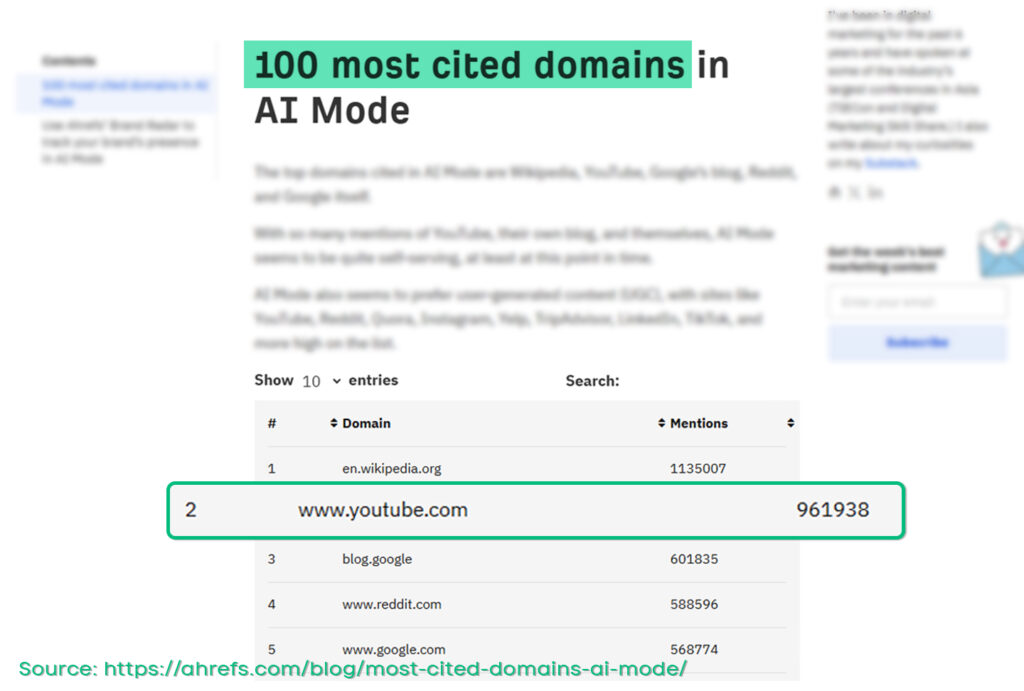
Youtube is 3rd Most Cited domain in Google’s AI mode
Chapters reduce bounce. When someone lands on a 25-minute video looking for one specific thing, chapters let them jump straight to it instead of clicking away. For entrepreneurs using YouTube to drive signups, this means more of the right people watching the right parts of your content.
Step 1: Identify Your Chapter Break Points
Open your video and note where each topic transition happens. You’re looking for genuine content shifts, not arbitrary intervals.
Don’t overthink the timing on your first pass. Get approximate times, then refine.
How many chapters should you have?
| Video Length | Suggested Chapters |
|---|---|
| Under 5 min | 3–4 |
| 5–15 min | 4–7 |
| 15–30 min | 6–10 |
| 30–60 min | 8–15 |
| 60+ min | 10–20 |
These aren’t hard rules. A fast-paced tutorial might need more chapters than a slow-paced interview of the same length. Chapter wherever the topic actually changes.
Step 2: Write Your Timestamps and Titles
Go back through the video and pin down the exact second each section starts. Write them in this format, one per line:
0:00 Introduction
1:45 Why This Topic Matters
3:20 Setting Up Your Environment
6:10 Writing Your First Function
9:30 Testing and Debugging
12:00 Common Mistakes to Avoid
14:15 Summary and Next Steps
The rules you can’t break:
- First timestamp must be
0:00— this is the trigger that activates chapters. Without it, your list is just plain text. - Minimum 3 timestamps — two won’t activate the feature.
- Each chapter must be 10+ seconds long — no two timestamps less than 10 seconds apart.
- Ascending order only —
5:30can’t appear before3:15. - Use colons —
2:30works.2.30,2,30,2-30do not.
For the complete formatting reference with copy-paste examples for different video types, see our YouTube chapters format guide.
Write titles that rank, not just describe
This is where most creators leave value on the table. Your chapter titles function as search keywords, Google uses them for Key Moments.
Weak titles (generic, zero search value):
0:00 Intro
1:20 Part 1
4:50 The Good Stuff
8:30 Next Steps
Strong titles (descriptive, keyword-rich):
0:00 Introduction to React Hooks
1:20 Installing Node.js on Windows 11
4:50 Writing Your First useEffect Hook
8:30 Common useEffect Mistakes and Fixes
Ask yourself: would someone type this chapter title into Google? If yes, that’s a title with Key Moment potential. If no, rewrite it.
Keep titles under 50 characters. YouTube truncates longer titles on the progress bar hover, especially on mobile.
Step 3: Add Timestamps to Your Video Description
- Open YouTube Studio (studio.youtube.com)
- Click Content in the left sidebar
- Click the pencil icon (Edit) on the video you want to chapter
- In the Description box, add your timestamp list. Place it below your main description text.
- Click Save
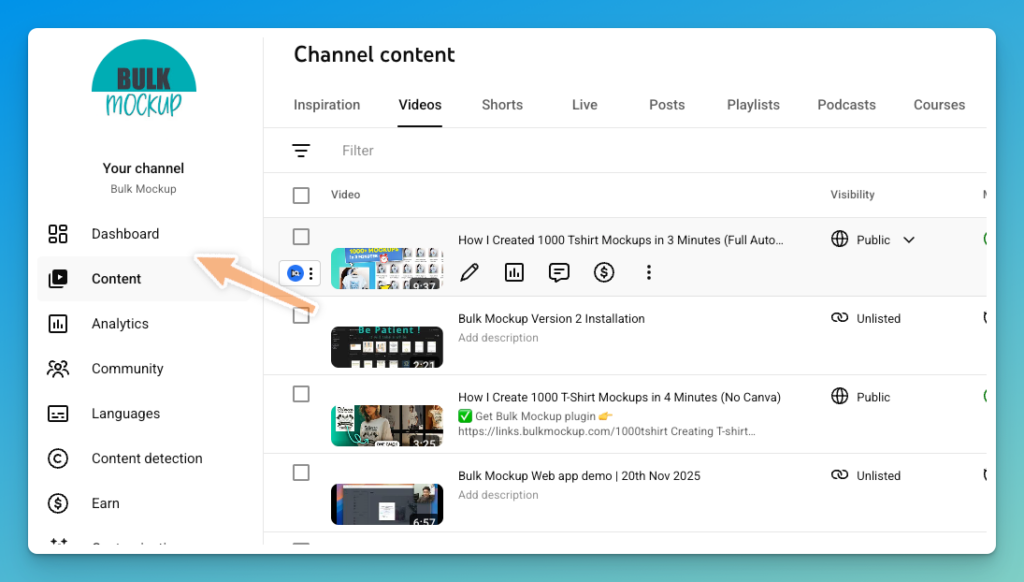
Step 1 - Open Youtube Studio -> Hover your mouse to video - > Select Edit(pencil) icon
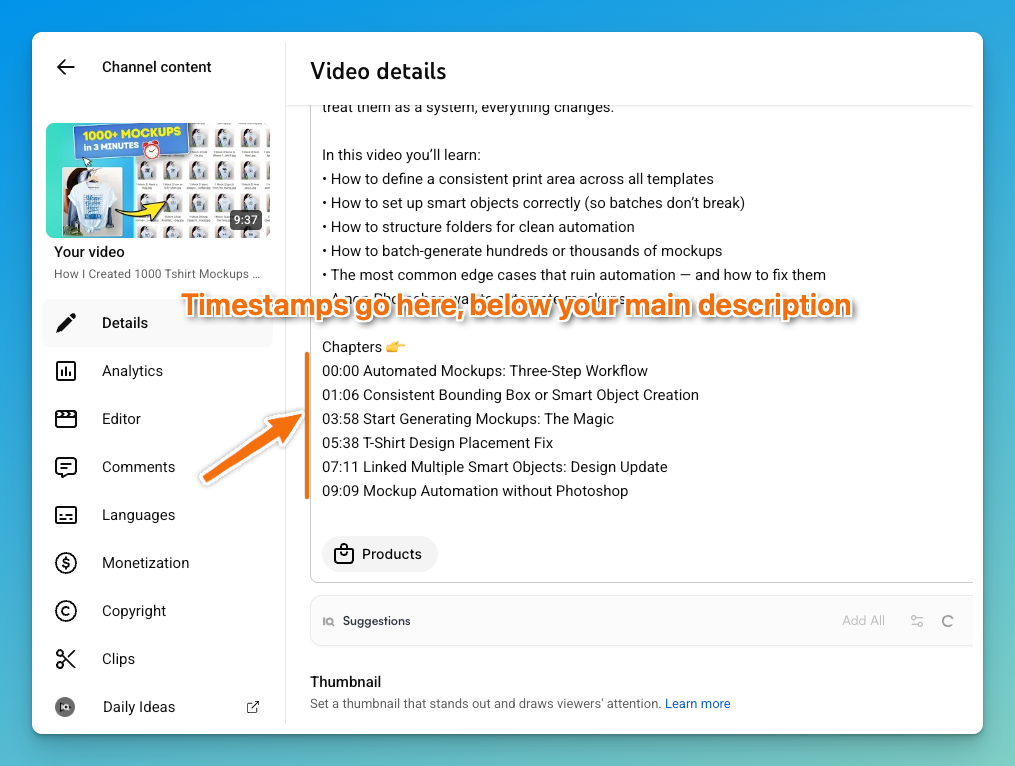
Step 2 - Add chapters below the youtube description
That’s it. YouTube processes your timestamps and creates chapter markers on the progress bar.
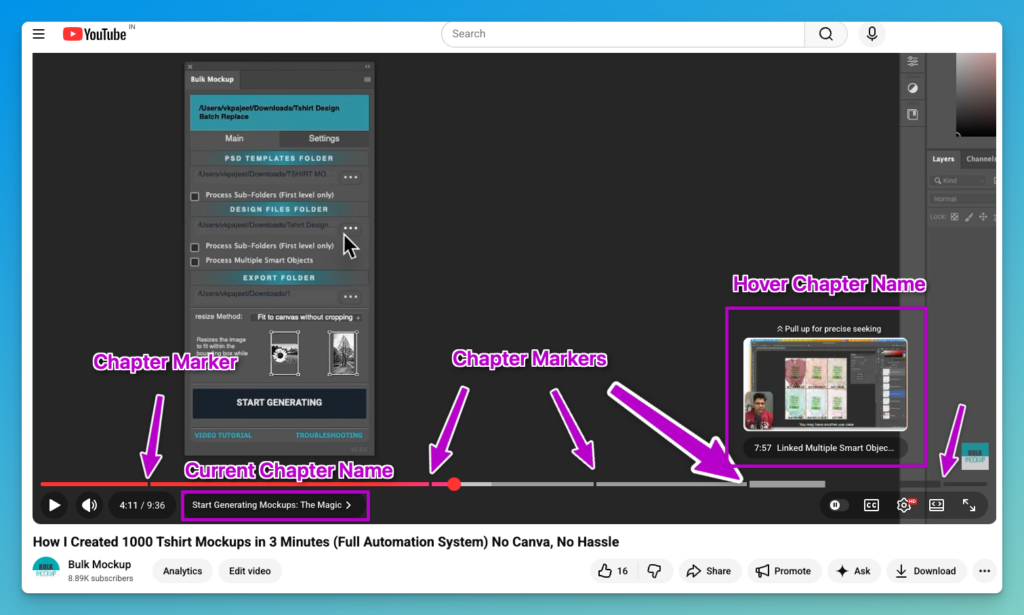
Youtube Video Player with Chapter Markers
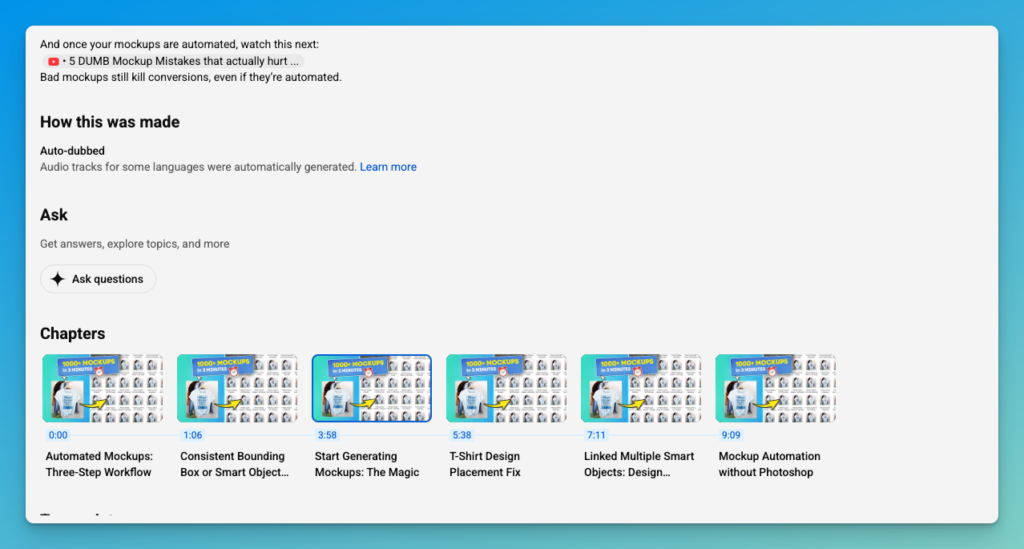
Youtube Chapter Cards in Description
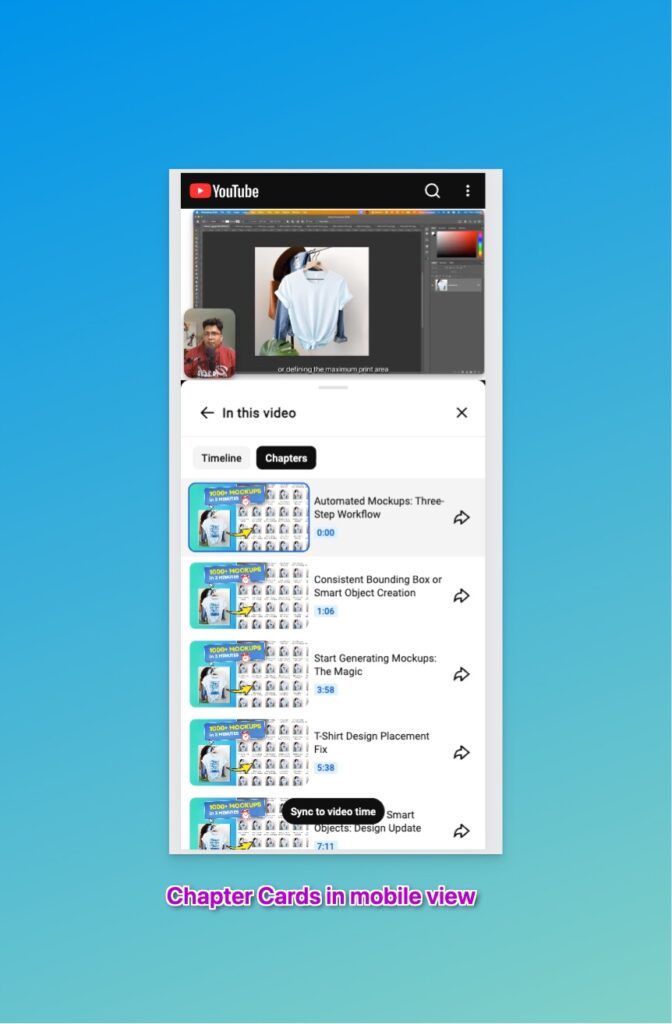
Youtube Chapters Cards in Mobile View
Where in the description should timestamps go? Technically, anywhere works. Convention is below your main description text and links. Some creators put them at the very top for maximum visibility, both approaches work.
Can you add chapters from the YouTube mobile app? Yes, but the experience is clunky. The mobile editor supports description editing, so you can paste timestamps there. For a smoother experience, use desktop or paste from a notes app.
Step 4: Verify Your Chapters Are Working
After saving, go to the public video page (not YouTube Studio, the actual watch page at youtube.com).
You should see:
- The progress bar divided into segments with thin vertical lines
- Chapter titles appearing when you hover over segments
- A chapter label showing the current section title below the video
Chapters not appearing? Wait 5–10 minutes and refresh. YouTube’s processing isn’t instant. If they still don’t show after 15 minutes, run through our troubleshooting guide, it’s almost always a formatting issue.
Step 5: Handle Automatic Chapters
YouTube auto-generates chapters on all videos by default using AI. These auto-chapters are often generic (“Introduction,” “Main Topic,” “Conclusion”) and carry little SEO value.
When you add manual timestamps, they override automatic chapters. But to eliminate any processing conflicts, disable automatic chapters after adding your own:
- In YouTube Studio, click your video → Show More
- Uncheck “Allow automatic chapters and key moments”
- Click Save
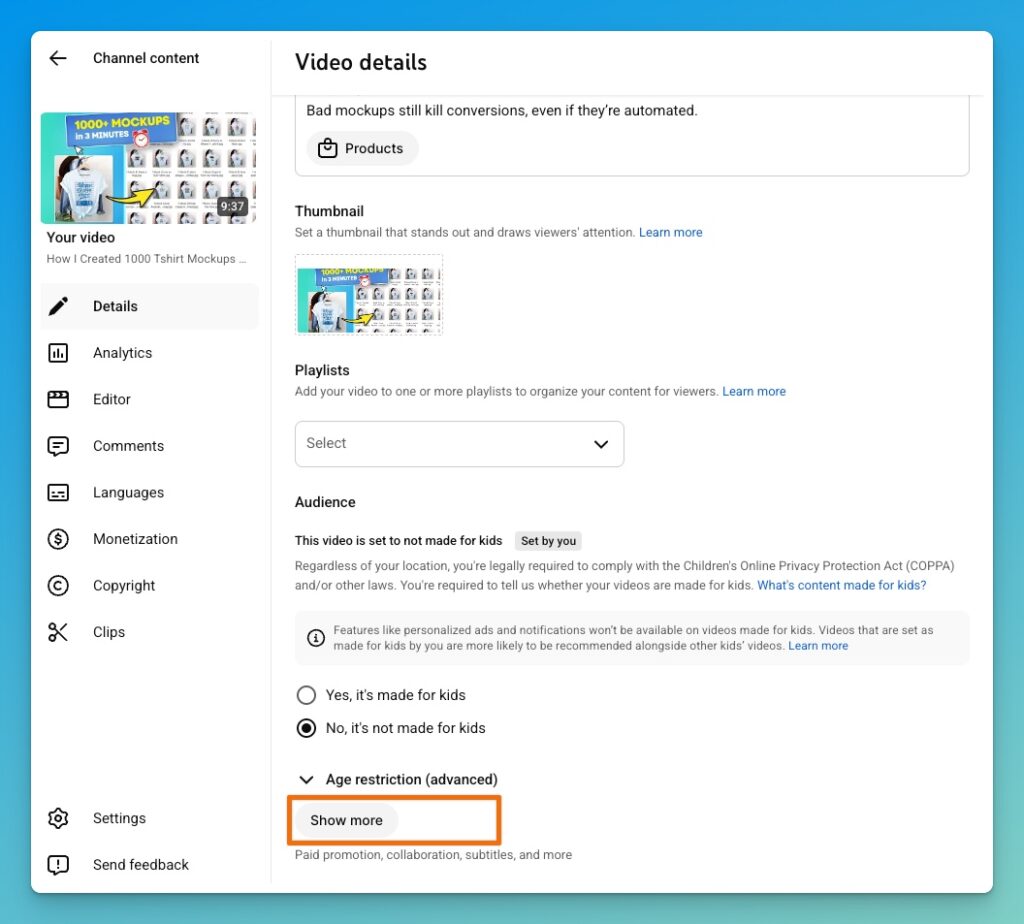
Click on Show More to see Automatic Chapter Option
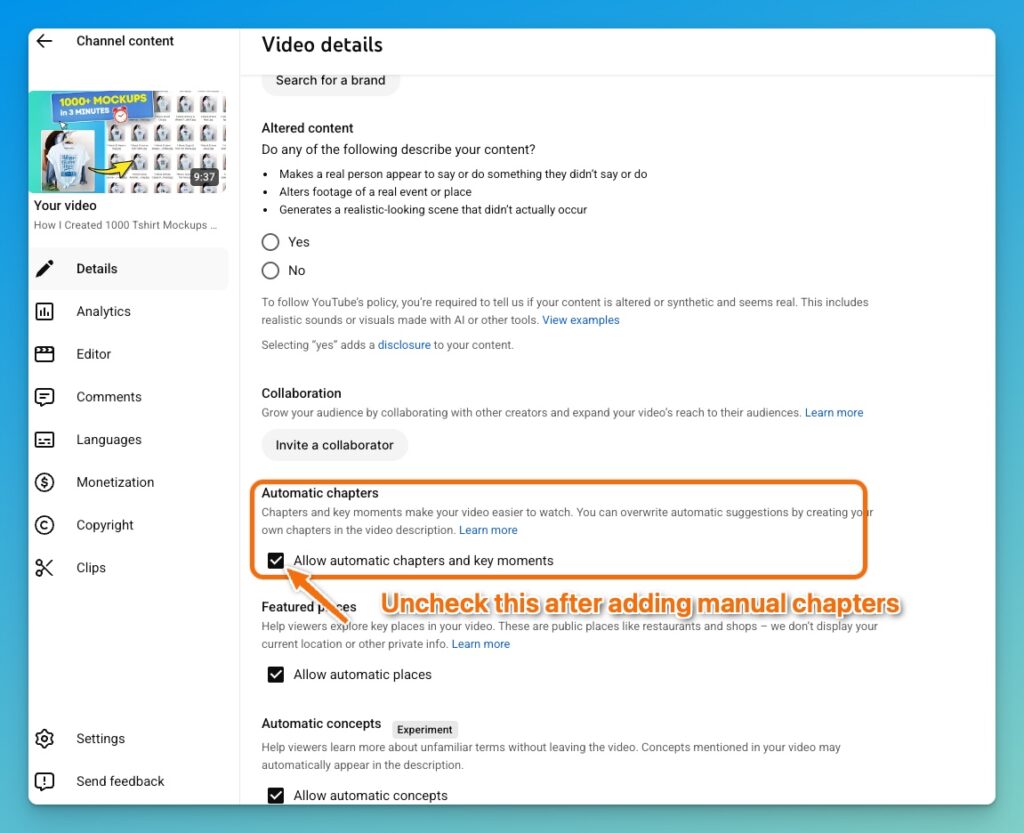
Uncheck Automatic Chapters
For a deeper comparison of when to use each approach, see automatic vs manual chapters. And if you want to disable auto-chapters across your entire library, here’s how to turn off automatic chapters in bulk.
Pre-Save Checklist
Run through this before saving your description:
- ☐ First timestamp is exactly
0:00 - ☐ At least 3 timestamps total
- ☐ All timestamps use colons (
m:ssorh:mm:ss) - ☐ Timestamps are in ascending order
- ☐ No two timestamps less than 10 seconds apart
- ☐ Every timestamp has a descriptive, keyword-aware title
- ☐ Titles are under 50 characters
- ☐ Timestamps are in the description, not a pinned comment
- ☐ Timestamps placed below main description text
Chapter Examples by Video Type
One thing no other guide covers: the right chapter structure depends on what kind of video you’re making.
Tutorial / How-To
0:00 Introduction
0:30 What You'll Need
2:15 Step 1: Create a New Project
5:40 Step 2: Configure Settings
8:20 Step 3: Build and Test
11:00 Troubleshooting Common Errors
13:30 Final Result and Recap
Product Review
0:00 First Impressions
1:30 Build Quality and Design
4:00 Display and Performance
7:15 Camera Test With Sample Photos
10:00 Battery Life Real-World Test
12:30 Who Should Buy This
14:00 Verdict and Pricing
Podcast / Interview
0:00 Guest Introduction
3:00 How They Started Their Business
9:30 The Biggest Lesson From Year One
16:00 Advice for Founders Starting Out
22:45 Lightning Round
26:00 Where to Follow the Guest
Course / Educational Content
0:00 Course Overview
1:30 Prerequisites
4:00 Core Concept: What Is an API
8:15 Live Demo: Making Your First API Call
14:00 Error Handling Best Practices
19:30 Practice Exercise
23:00 Summary and Next Lesson
Listicle / Ranking
0:00 Introduction and Ranking Criteria
1:00 Number 5: Canva
3:30 Number 4: Figma
6:00 Number 3: Adobe Express
8:30 Number 2: Snappa
11:00 Number 1: The Winner
13:00 Final Thoughts
Tips for Better Chapters
Treat chapter titles as SEO assets. Each title is a potential Google Key Moment. “Installing WordPress on Ubuntu” will drive targeted search traffic. “Step 2” won’t.
Don’t chapter every 30 seconds. Over-segmenting makes the progress bar look cluttered and overwhelming. Chapter at genuine topic shifts, not arbitrary intervals.
Be consistent across your library. Use the same formatting style, similar title conventions, and predictable chapter structures across all your videos. Viewers learn to expect it.
Update chapters when you update videos. If you recut a video and timestamps shift, your chapter markers will point to the wrong moments. Always double-check timestamps after editing.
The Faster Way: Generate Chapters Automatically
If you publish regularly, manually watching each video to note timestamps gets old fast. A 20-minute video takes 10–15 minutes to chapter manually. Multiply that by your weekly upload schedule and the time adds up.
Our AI YouTube chapter generator analyzes your video’s content and produces formatted chapters in seconds. Paste your video URL, select your preferred style, and get timestamps that are:
- Correctly formatted (0:00 start, proper syntax, ascending order)
- Descriptively titled with keyword-aware labels
- Ready to paste directly into your description
It turns a 15-minute manual process into a 30-second review-and-paste workflow.
Free tool
Generate YouTube Chapters in Seconds
Paste any YouTube URL and get clean, SEO-friendly chapter timestamps ready to paste into your description.
No signup required.